
Board upgrades: Get a sneak preview of a unique collaborative experience!
Published on March 2, 2026
Board upgrades: Get a sneak preview of a unique collaborative experience!
Published on March 2, 2026
Enjoy a brand new Klaxoon Board experience!
Many new features are now available in your visual workspaces to make collaboration even more intuitive and accessible.
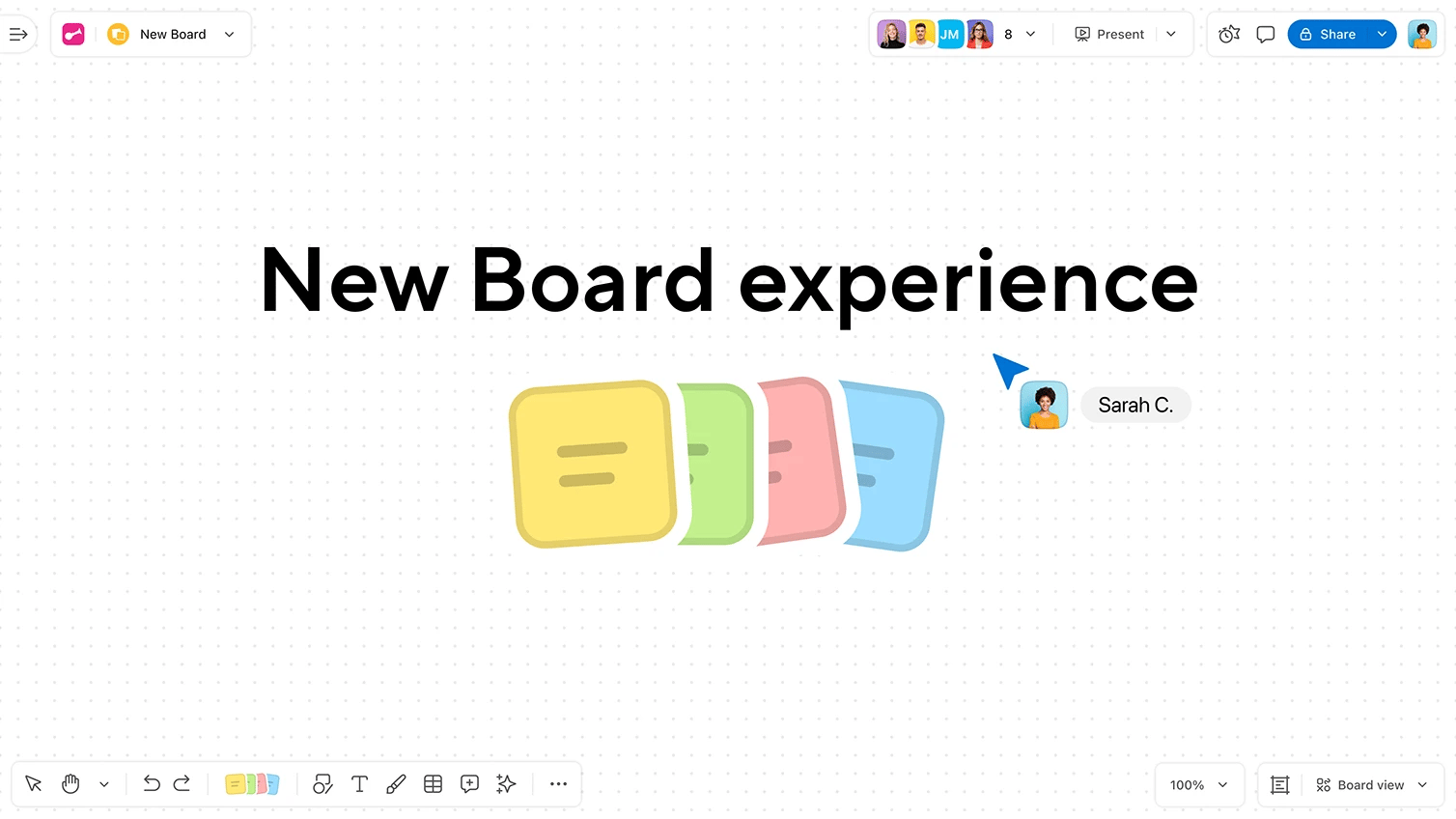
The latest developments on Board include simplified navigation and object selection, as well as a new design for creating ideas. Presentation and animation features have also been grouped together in a new menu, for a more enjoyable and natural user experience.
With this brand-new interface, Board becomes easier to use, and each participant's contribution generates maximum value. Discover what Klaxoon has in store for you this year!
Thanks to refined navigation and selection modes, you can now navigate your Board more easily:
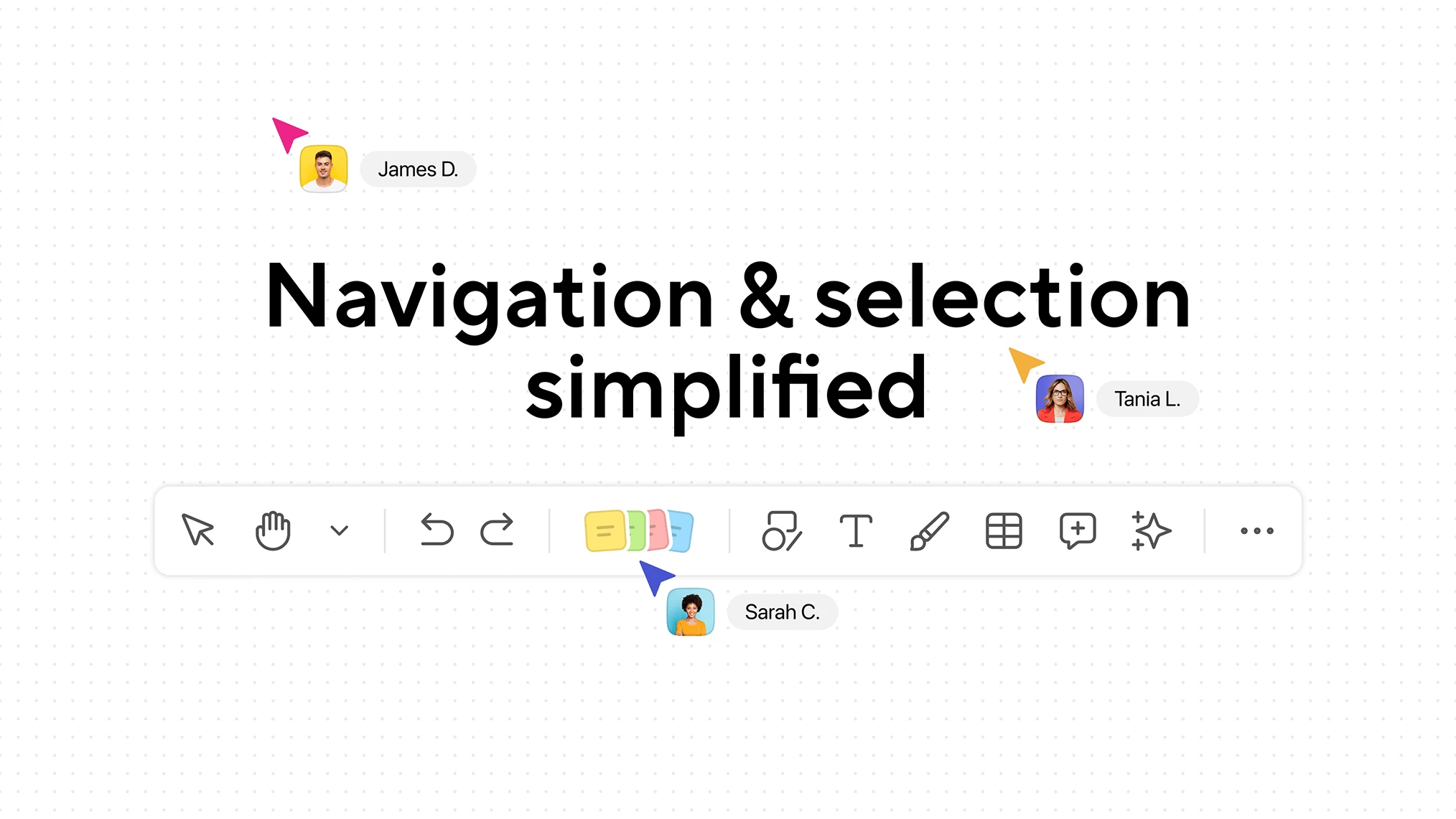
When you add a new element to your Board (shape, idea, text, file, etc.), it will automatically switch to selection mode so that you can place the new object in your workspace. To quickly return to navigation mode, use the right click, wheel click, or space bar on your keyboard. Keyboard shortcuts (V to select and H to navigate) also remain valid.
Additionally, you can quickly select items with empty spaces, such as tables, text boxes, and shapes without fill. You can select them by clicking on their outlines, their content, or the empty space that comprises them if there are no other objects in the background.
Finally, you can customize your toolbar using the Insert content or “...” button at the bottom right. Pin the items you use most often to quickly access them when preparing your activities: importing shapes, images, templates, PDFs, and more. Visit our Help Center for more information.
Our famous “+” button has been revamped! It becomes a more visual button for adding ideas, accessible from the toolbar on the left of your Board.

The colors of the four sticky notes shown on this button are among the colors used in your Board. Clicking on it displays the complete list of colors on the whiteboard, and you can select the one you want while keeping visibility on the rest of your workspace.
Note that the last color used for an idea remains selected by default (this also applies to shapes and text). You can change it by clicking the button to add new ideas or by selecting an idea in the desired color that is already on your Board.
Facilitation and interaction features are at the heart of Klaxoon Board design. To make it easier for everyone to engage participants on Board, we have combined the presentation and interaction tools in a toolbar accessible at the top right of the interface.
In this toolbar, you can find the avatars of participants currently connected to the Board, and access the complete list of participants and their connection status by clicking on this area.
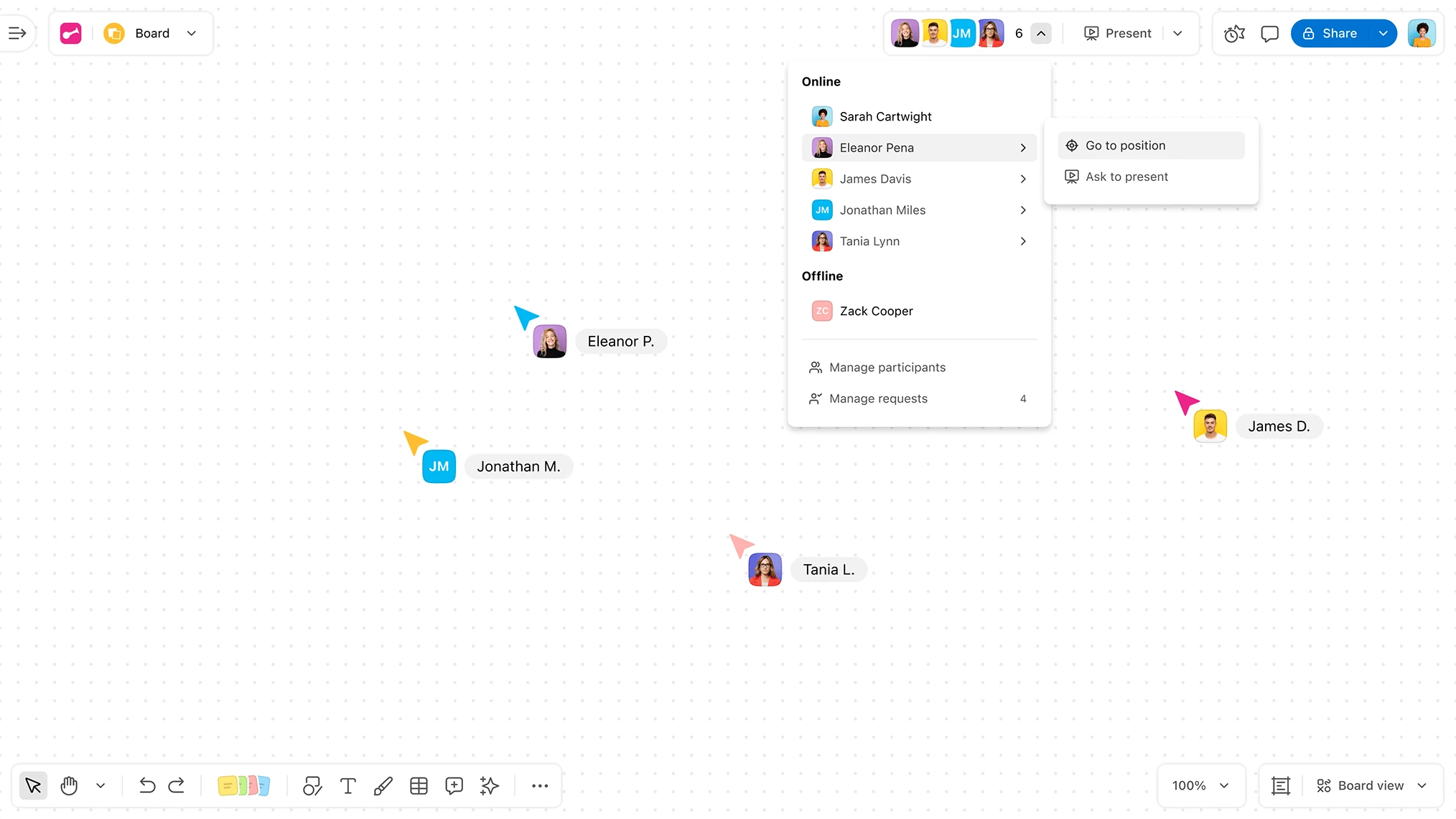
From the list of participants, you can also go to the Board location visible to each of them, or ask one of them to take over the presentation.
If you want to present your Board to participants, the dedicated button in the toolbar allows you to start a classic presentation of your Board view, or to present in a more structured way using Zones. When a participant takes control of the presentation, their avatar displays a blue outline on the Board.
Note that in presentation mode, the Share and Comment buttons are hidden for clarity.
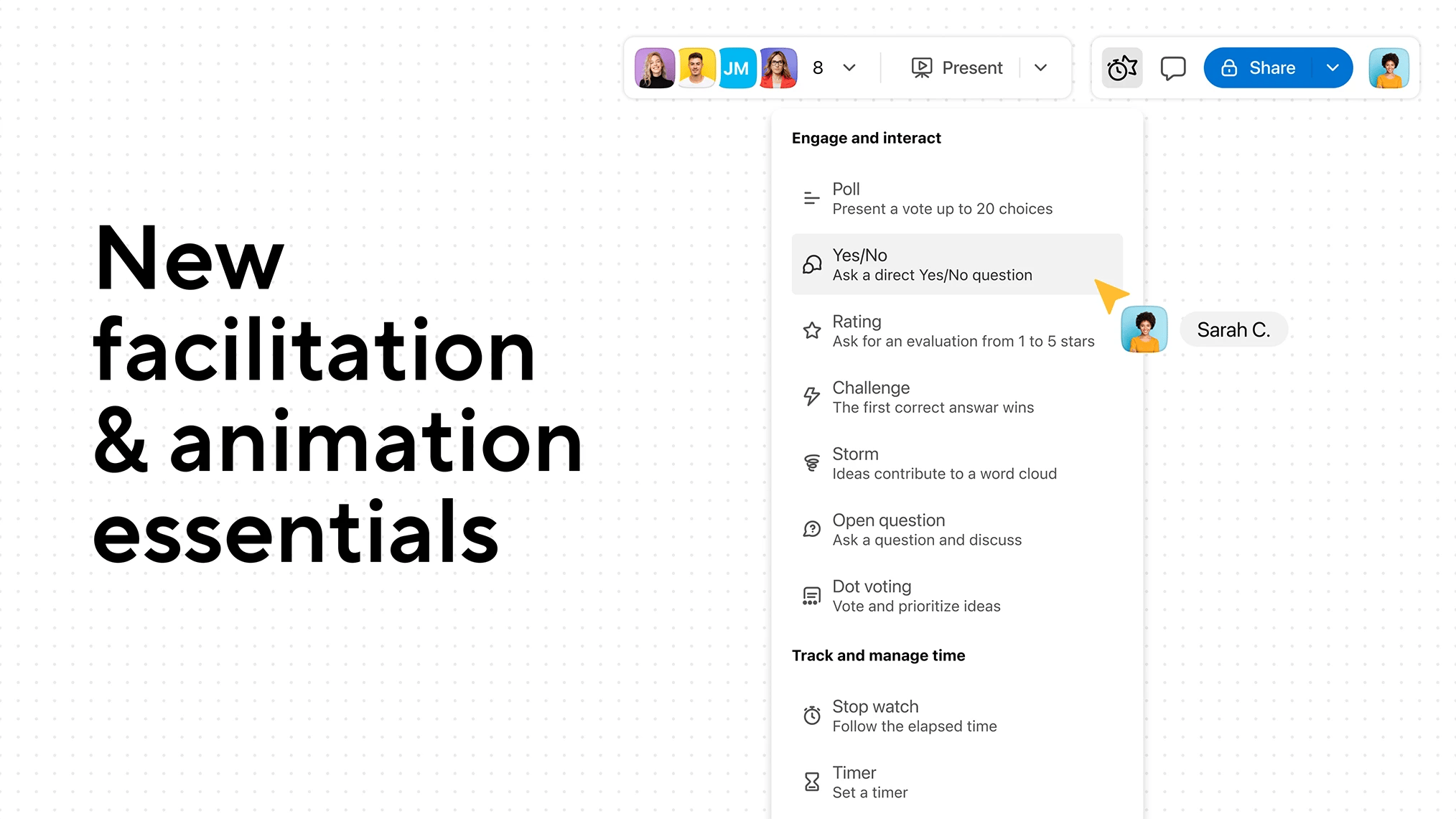
Finally, the “Questions” icon has become the “Interact” button in the upper right corner, allowing you to access tools for engaging your participants:
This menu also contains the time management tools used in facilitation: stopwatch, timer, and activity pause.
All these new features are now available in your Klaxoon Boards! If you have any questions or would like further information, please contact us.
Unlock your teamwork potential
For free, make your first steps to top-tier work efficiency with the Klaxoon Visual Platform.